Screen Sharing using the Mac App
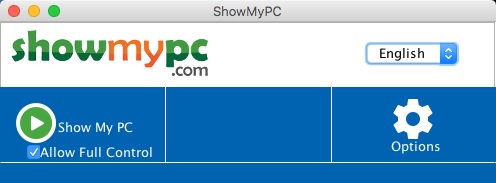
This option should be used when you need to provide full control, and requires a download.| 1. To share your desktop, Click ShowMyMac on the ShowMyPC home page. |
| 2. Wait for the file to download, then run it. Look it up in the Downloads folder. We recommend saving it for future use. |
| 3. Click on "Show My PC" button to generate password and make your computer accessible remotely. |
| 4. Give the password to remote users. |
| 5. It is recommended to use HTML Viewer to connect to this session. |
 |
Premium clients may follow the same steps on their private website. |
| If prompted for Account Name, enter the domain provided by ShowMyPC for your account. Eg. if your domain is https://mycompany.showmypc.com, enter mycompany as the input. 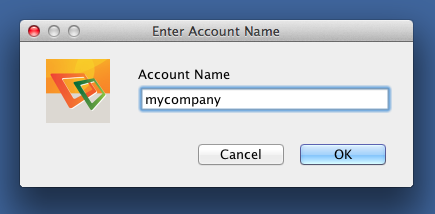 |
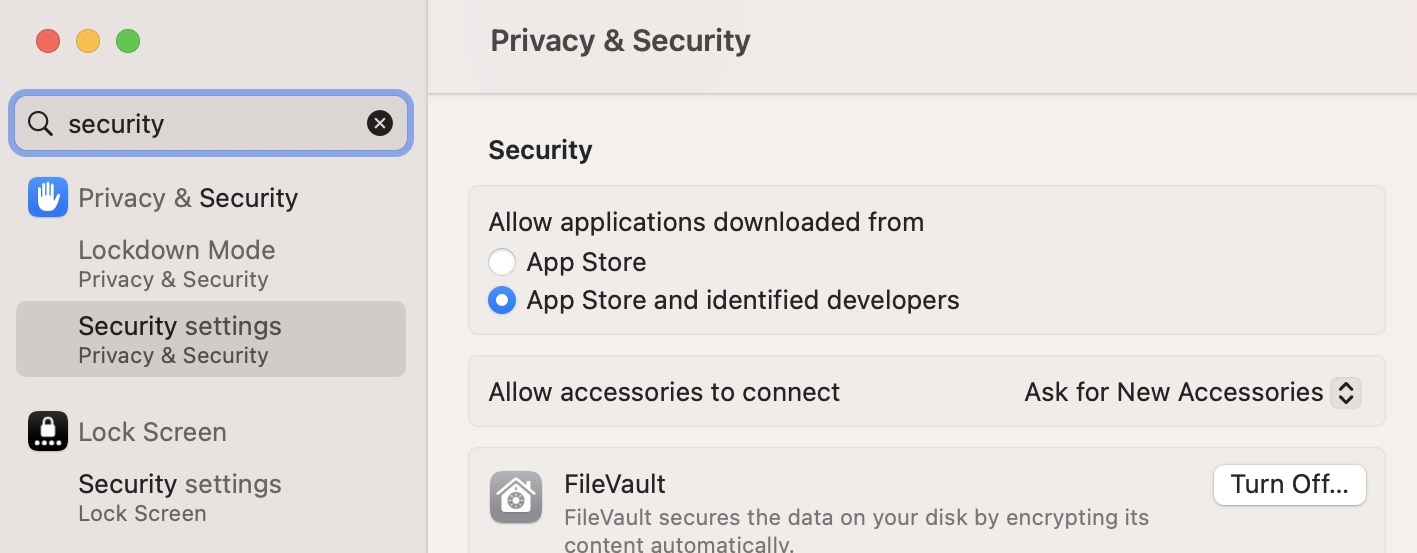
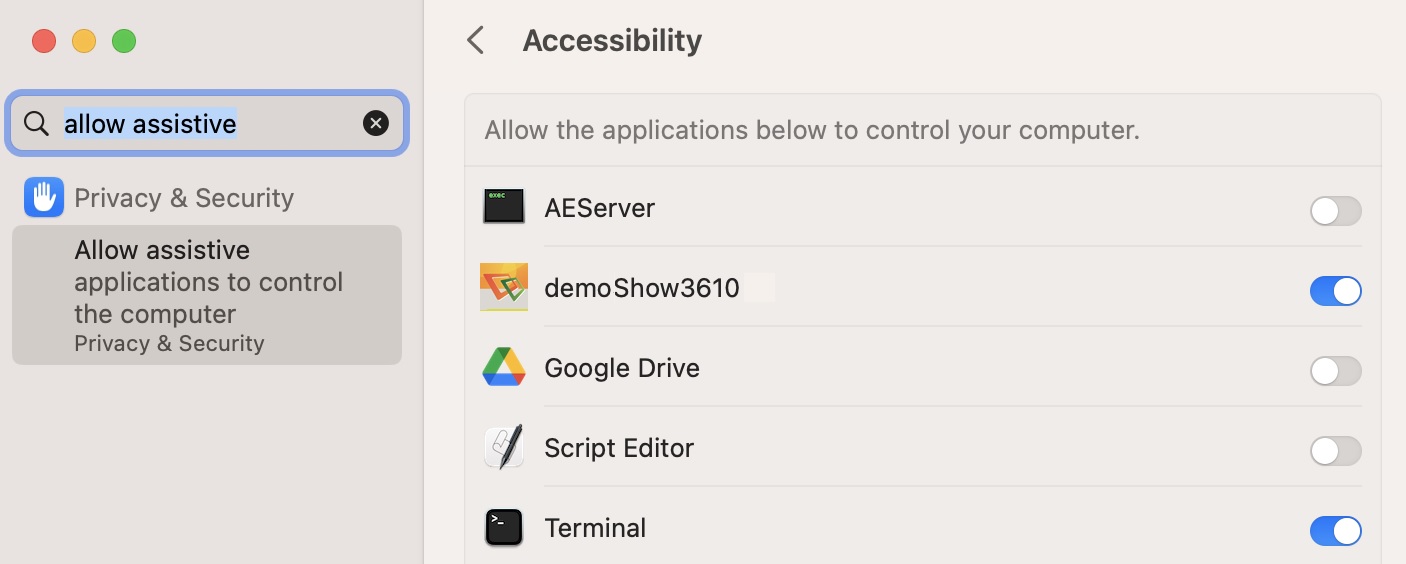
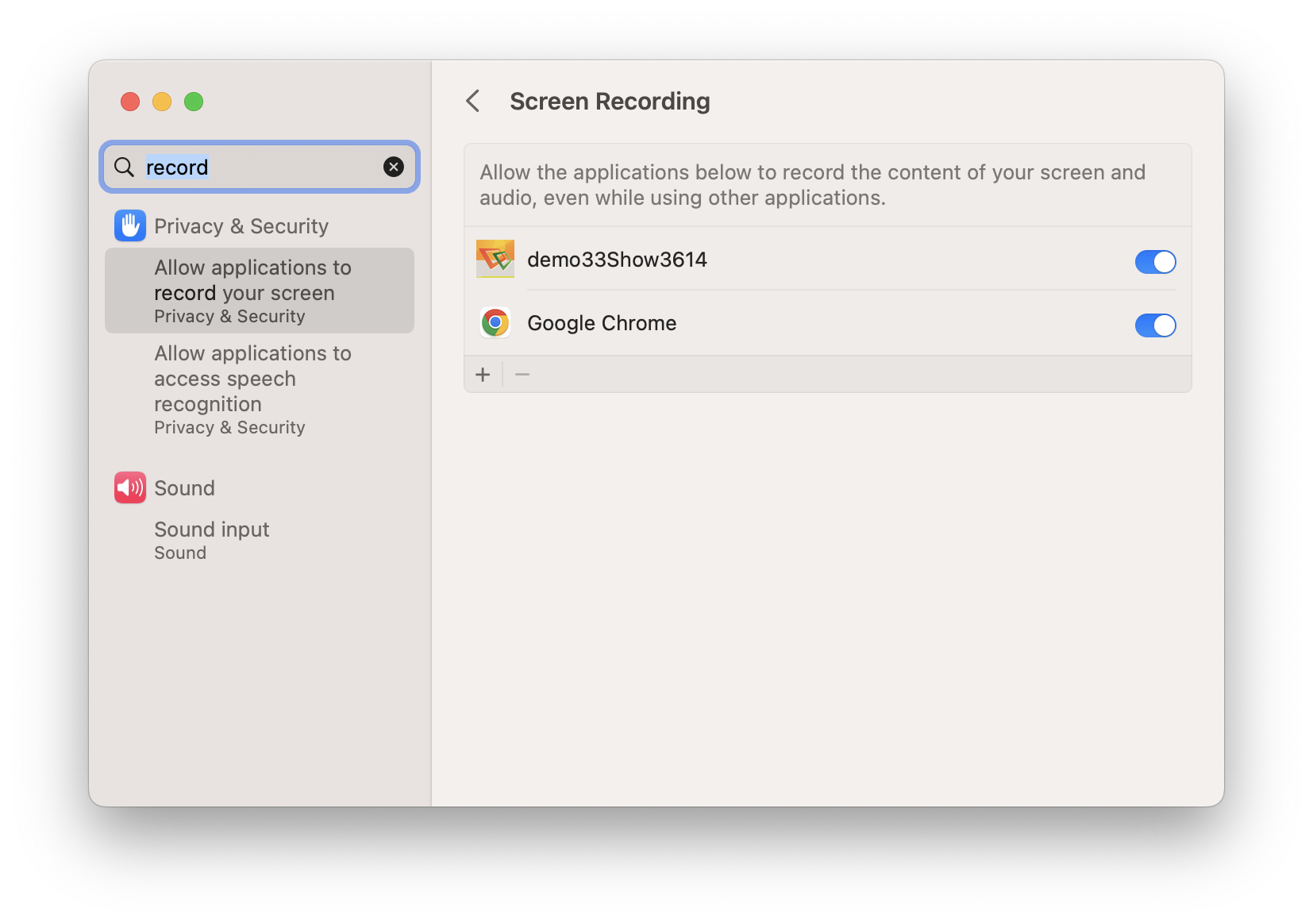
If you are using ShowMyPC on a Mac for the first time, you may get permissions warning due to Mac security. Please follow these steps. |
| 1) System Preferences > Security > Allow app to run, if you see any warning. |
| 2) Allow assistive application to control your computer. |
| 3) Allow ShowMyPC to be able to capture your screen. |
 |
 |
 |
View from Mac
| 1. To View remote desktop from a Mac, use the HTML Viewer on your home page. |
| 2. Enter the password and click arrow to view remote screen. |
 |